Drive More Bundle Sales from Your Product Pages with Bundle Entry
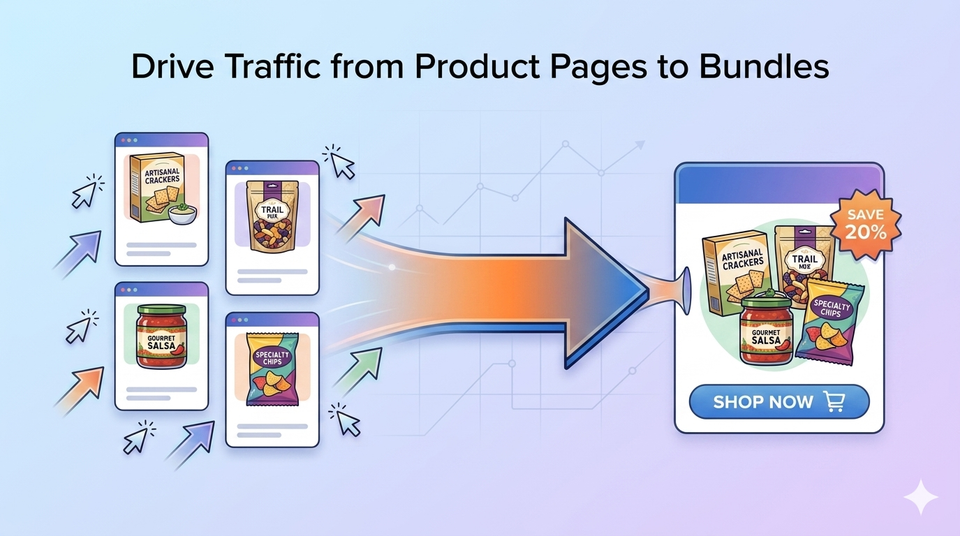
Most merchants build great bundles — but customers never see them.
That’s the real problem.
The Problem: Your Bundles Are Hidden
You’ve already done the hard work:
- Created high-value bundles
- Designed a better buying experience
- Increased AOV potential
But on a typical storefront, customers still land on standard product pages (PDPs).
From there:
- They add a single product to the cart
- Or leave
Your bundles — where the real value is — stay buried.
This creates a gap:
Traffic goes to PDP → Revenue opportunity lives on bundle pages
The Solution: Turn PDP Traffic into Bundle Traffic
We’re introducing Bundle Entry — a lightweight widget that connects your product pages directly to your bundle experience.
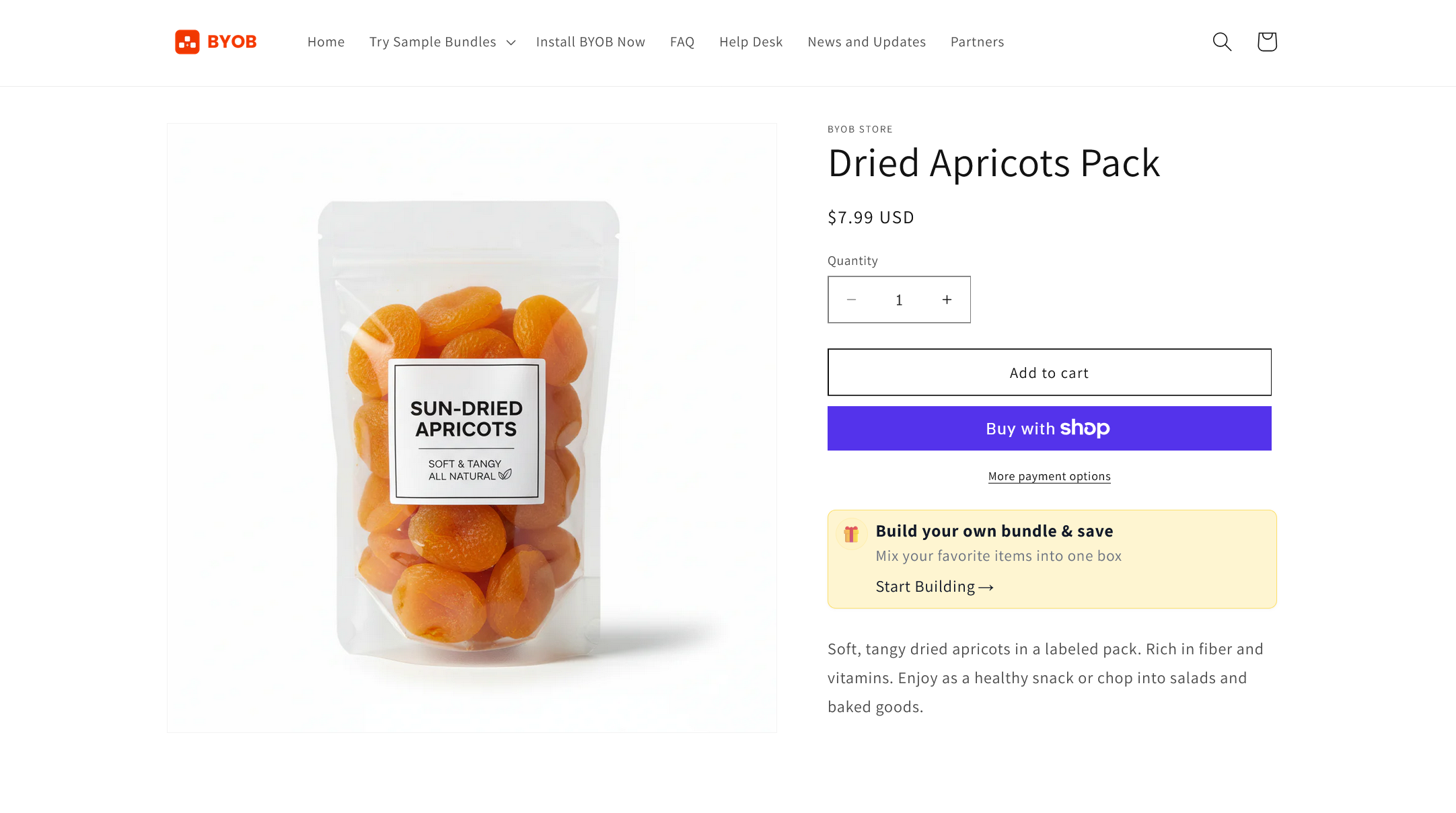
-> Try the live widget on our demo store
Instead of forcing everything into the PDP (which gets messy fast), we take a cleaner approach:
- Keep PDP simple
- Guide high-intent customers to your bundle page
- Let them build their order properly
What it does
- Displays a call-to-action widget on product pages
- Encourages customers to explore your bundle
- Redirects them to your BYOB bundle builder page
Think of it as:
“Upgrade this purchase → Build your bundle instead”
This avoids:
- Cluttered PDP layouts
- Complex variant logic inside the PDP
- Poor mobile UX
And instead gives you:
- A focused bundle experience
- Higher AOV potential
- Better control over the buying journey
How to Activate Bundle Entry
You can enable it in minutes. In the BYOB app, you can edit a bundle and select products in the additional options. After clicking the save products button, you can click the deep link
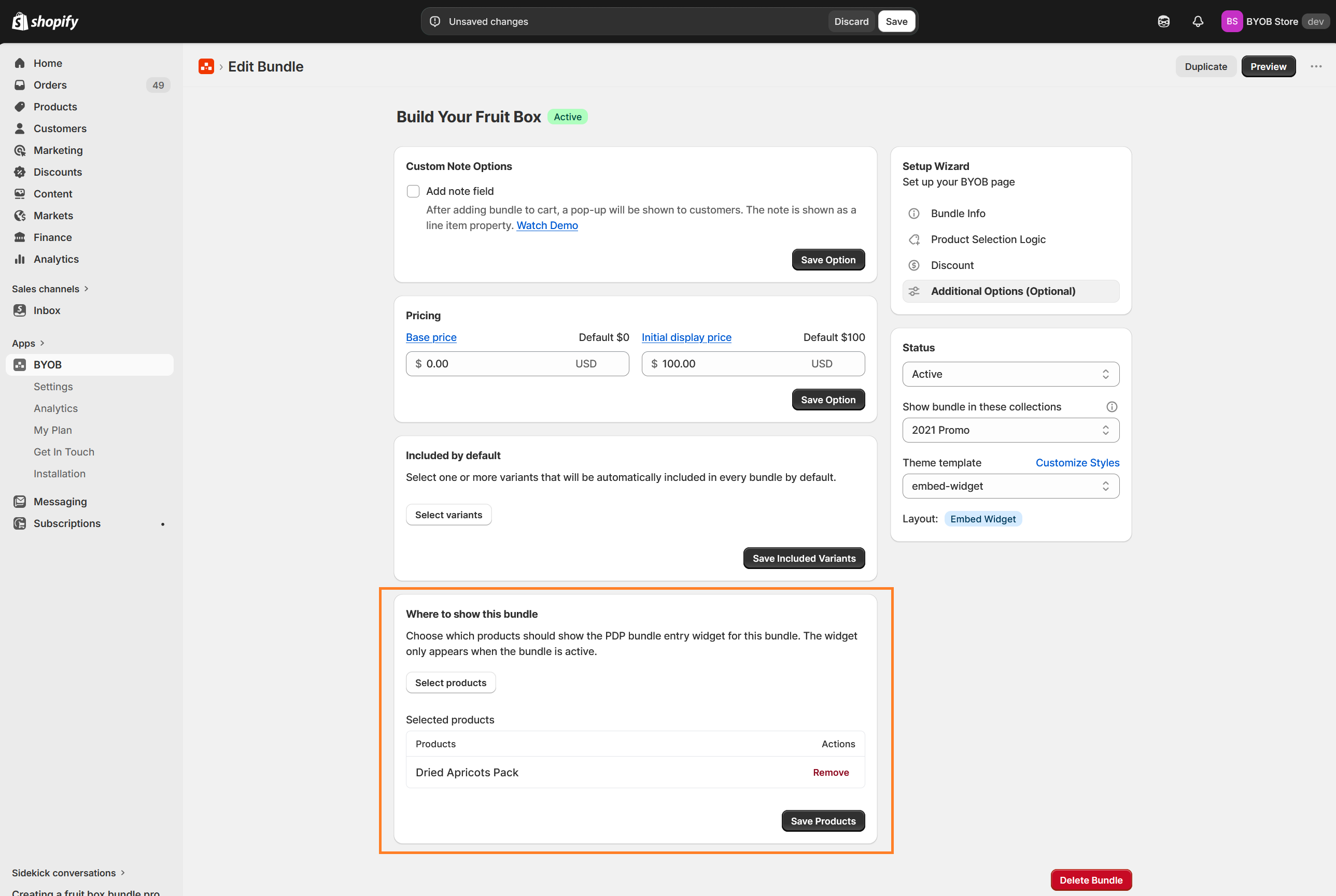
Option 1: One-click install (recommended)
- Click the deep link on the success banner
- The BYOB bundle entry widget will be added to your product template automatically
- Move the widget before or after the add-to-cart button
- Hit Save in the theme editor
Option 2: Manual setup
- Go to Theme Editor
- Navigate to:
- Product → Default product template
- Add the app block:
- BYOB Bundle Entry
- Place it:
- Under or below the Add to Cart button
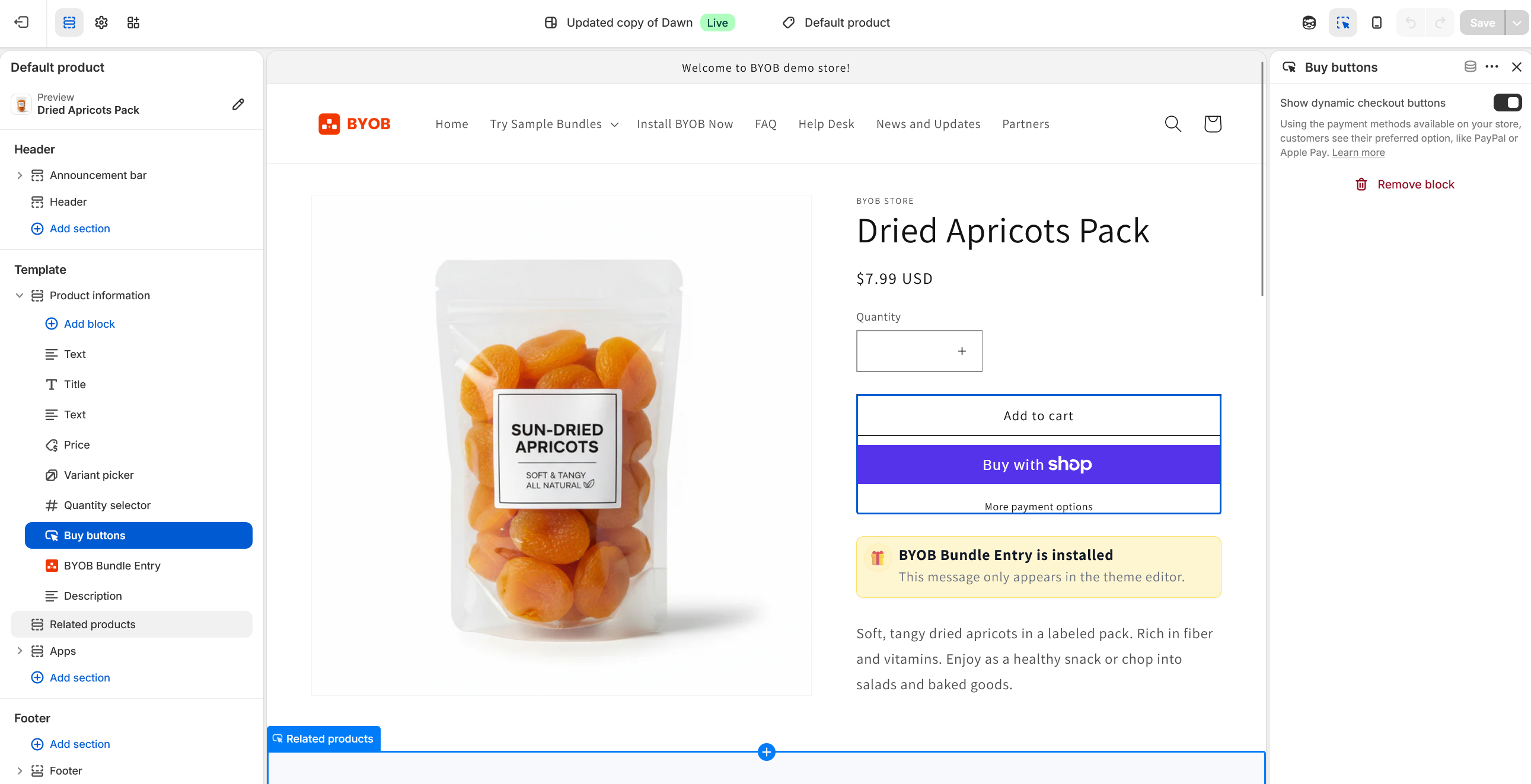
That’s it — your widget will start showing on product pages.
Customize the Look & Feel
You can easily match the widget to your store design.
Inside the app block settings, you can:
- Change the icon
- Adjust the background color
- Edit the text
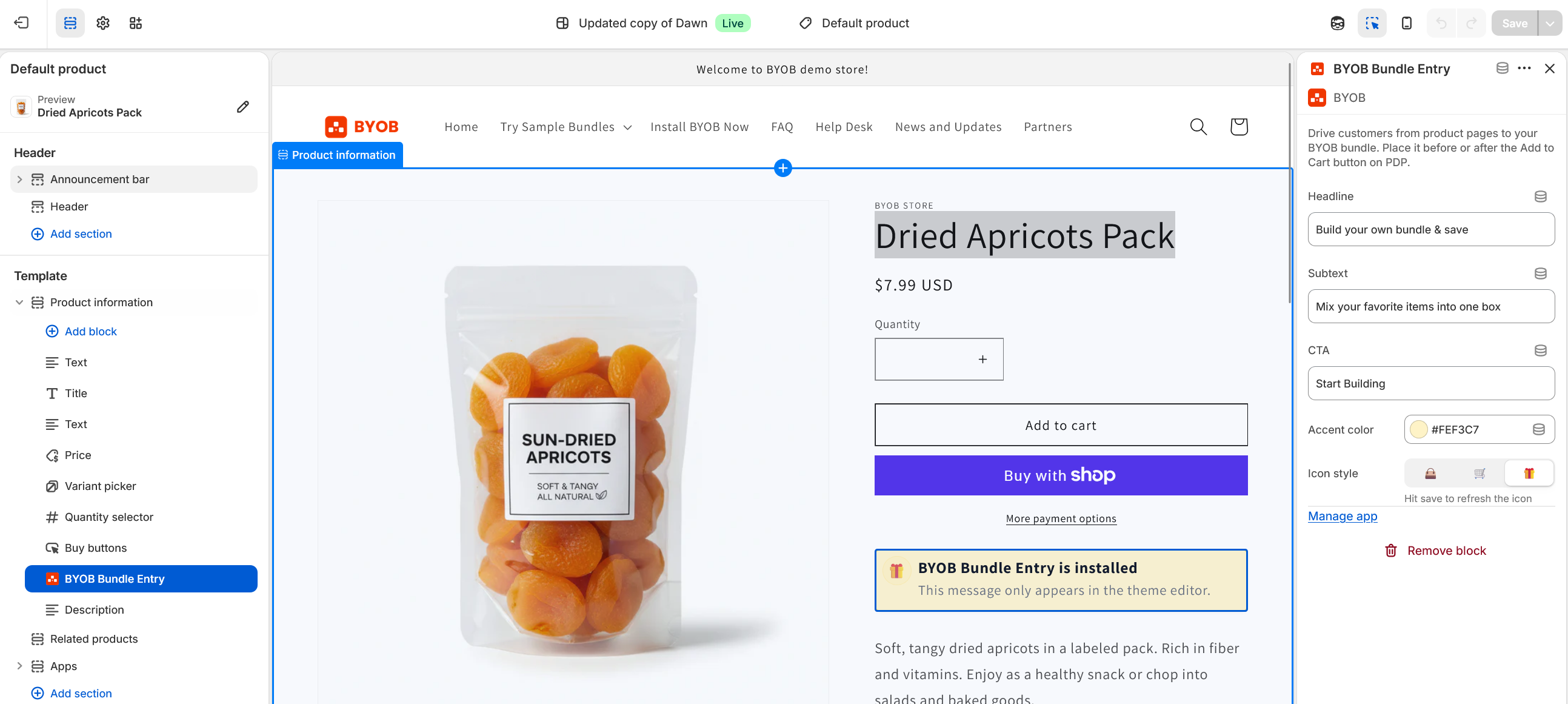
This keeps the experience consistent with your brand while still standing out enough to drive clicks.
Availability
Bundle Entry is now available for:
- Standard plan and above
- Basic plan - support 1 bundle
This aligns with merchants who are ready to actively optimize AOV and bundle performance.
Why This Matters
This feature is not just UI.
It changes how your store converts:
- Instead of relying on customers to find your bundles
- You actively route them there
That’s a fundamental shift:
From passive bundles → to guided purchase flow
We Want Your Feedback
This is the first version of Bundle Entry.
We’re especially interested in:
- Where you place the widget
- How customers interact with it
- Whether it increases bundle orders
If you have ideas, edge cases, or requests — let us know.
👉 Reach out via support or use the beacon directly inside the app.